A practical guide
How to sign a PDF
without printing
Open your PDF, add a visible signature, and save a new copy. Keep the original so you can start again if you need to.
Draw a signature or use an image?
Both methods add a visible mark. Neither provides identity verification, a signing certificate or a request for someone else to sign.
Practice signing page 2 of 3
Try a complete placement check with sample pages and a test mark. No personal PDF or real signature is needed.
Your task
Put one test mark inside the outlined box on page 2. Reduce its size, download the result, and confirm that pages 1 and 3 stayed unchanged.
- Open the three-page practice, then press Practice signing page 2. If a document is already open, finish saving it before using Close document & clear signatures.
- In the preview toolbar, change Page to 2 of 3. On a narrow screen, scroll below the signature controls to find the page preview.
- Draw a simple test mark, or save this synthetic test image (PNG) and choose it under Upload image. Select Use this signature, then Add signature to page.
- Use the Size slider to make the mark smaller, then drag it into the box near the lower right of page 2. Keep it above the line and inside all four edges. With the mark focused, you can also use arrow keys to move it and + / − to resize.
- Select Download signed PDF. Open the new file, normally named three-page-practice-signed.pdf, in your PDF reader. Your browser may add a number if a file with that name already exists.
Expected result: exactly three pages; one smaller mark inside page 2's test area; no added marks on pages 1 and 3; all page headings and instructions still readable.
On the wrong page? Select the misplaced mark and choose Remove, switch to page 2, and add it again. Changing the Page control does not move a mark from one page to another. The sidebar's Remove image clears the image you are preparing; it does not delete marks already placed on the PDF.
If the saved copy is missing the mark or looks different, follow the checks below.
Add and place your signature
Open the original PDF
Select Choose PDF in the signing tool, then choose the PDF from your device. Wait for the page preview before continuing. The tool reads the file in your browser; see how file handling works. To practice first, choose Try a sample PDF.
Find the page you need to sign
Use Next, Previous, or the Page control to reach the signature line. Check the page number and nearby text. A document can have different page sizes or sideways pages, so inspect each page before placing a signature.
Draw or choose your signature
Choose Draw to write with a mouse, trackpad, finger, or stylus, or choose Upload image for a PNG or JPEG. If the drawing is unclear, use Clear drawing and try again. An uploaded image appears immediately with its filename. Use Change image to choose another file, or Remove image to clear it; during loading, use Cancel. Select Use this signature when the preview is ready. Removing this candidate does not remove signatures already placed on a PDF.
Position it on the page
Select Add signature to page, drag it to the signature line, and adjust it with the Size control. Keep it inside the page and away from nearby text. Use Undo if you make a mistake, then check the placement again.
Download and reopen the result
Select Download signed PDF and save the copy to your device. Open that downloaded file in your usual PDF reader and inspect every page you changed. Send or share that copy only after checking it.
No printer or scanner is needed. The signature becomes part of the downloaded PDF. The original file on your device stays available unless you choose to replace it when saving.
Place a signature with the keyboard
Use Tab to move between controls. With a placed signature selected and focused, use the arrow keys to move it, + or − to resize it, and Delete to remove it. Ctrl+Z on Windows or Command+Z on Mac undoes an edit. You can also use the visible Size and Undo controls.
Try the sample and inspect the result
You can practice without opening a personal document. In the tool, choose Try a sample PDF, draw a test mark or choose a test image, and place it on the signature line. Download the copy and reopen it in another PDF reader.
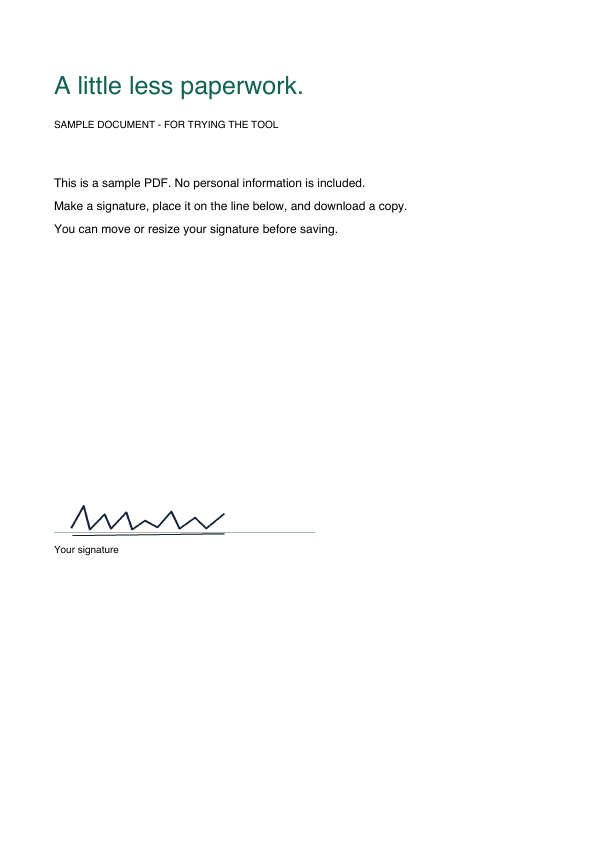
In this example the saved file has one page, the sample text remains readable, and the test mark appears near the signature line. This checks the visible result; it does not authenticate a signer or prove acceptance by a recipient.
Use a clear signature image
A tightly cropped image is easier to position than a full photograph of a sheet of paper. Use a PNG or JPEG containing only your own signature, with a little space around the strokes.

These are illustrations using a synthetic mark, not a background-removal feature. Even a transparent image can obscure text where its ink strokes overlap it. Leave clear space for the signature.
- Keep the strokes sharp. Dark ink and an even, plain background make the mark easier to read.
- Check the background. A transparent PNG can sit over the document without a white rectangle. A photo or JPEG may cover text with its background; this tool does not promise automatic background removal.
- Crop before importing. Remove unrelated writing, fingers, and desk edges using your device's image editor.
- Check at the final size. A large, clear preview can still look faint when reduced to fit a small signature line.
Sign on an iPhone with Apple's tools
If you already have the PDF on your iPhone, Apple's built-in tools are another way to add a visible signature. In Preview, open the PDF and use Markup, then the Add button. In other supported apps, open Markup and choose Add Signature.
Draw with your finger, finish the signature, then drag it into place and resize it using the outline handles. Menu names vary by app and iOS version. Apple's iOS 26 guide also explains that Markup saves signatures for reuse and how to delete them.
Follow Apple's signature instructions and its Preview annotation guide for your device. Reopen the saved PDF before sharing it.
Check the saved PDF
“Your signed copy is ready” means the tool generated a downloadable file. It cannot confirm that your browser saved it or that a recipient accepted it. Reopen the downloaded file, then check:
- The correct page contains the signature, and every required signature is present.
- The signature has the right size and position, including on rotated pages.
- Original text and page contents remain readable.
- The PDF opens in another reader, and its page count matches the original.
- The recipient accepts a visible signature for this document.
Keep the original and the signed copy as separate files. The tool does not send the document to its recipient for you.
Fix common problems
- The PDF will not open
- Check that the file opens in a PDF reader. If it is damaged, request a fresh copy. This tool rejects encrypted PDFs. Ask the document owner for a suitable copy or use the authorized workflow they provide.
- The document already has a digital signature
- This tool rejects PDFs when it detects an existing digital signature. Use the sender's signing workflow or request an unsigned copy. Editing a signed or certified document may affect its existing signature or permitted changes.
- The signature image will not load
- Choose a PNG or JPEG up to 5 MiB and under 20 megapixels. A damaged or unsupported image clears the previous candidate so it cannot be reused by mistake. Choose another image, or switch to Draw. Already placed signatures stay on the page.
- The signature covers nearby text
- Reduce its size or crop excess space from the signature image before importing it. A JPEG's white background remains part of the image.
- The browser is slow or the page reloads
- Large PDFs and detailed scanned pages need more memory. The tool caps files at 50 pages and 20 MiB on desktop, and 20 pages and 10 MiB for mobile or touch layouts. These are limits, not a guarantee that every file will work on every device. Close other tabs or try a desktop browser. Reopen the original if the browser loses the editing session.
- The downloaded copy has no signature, or it is on the wrong page
- Make sure you opened the new signed copy rather than the original. In the tool, Use this signature prepares the mark; you still need Add signature to page. Check the Page control and preview, correct the placement, download again, and open the newest file from your browser's downloads list.
- The saved mark is too large, small or close to an edge
- Compare the saved page with the preview at a similar zoom. Select the mark in the tool, adjust Size and position, and download a new copy. If the result still differs in another PDF reader, do not send it; keep the original and use another suitable signing workflow.
- I cannot find the downloaded file
- Check your browser's downloads list and the save location you selected. If the browser opens a PDF preview, use its save or download action. On a shared device, remove downloaded copies when you no longer need them.
Understand what this signature does
InkOnPDF adds an image of your signature to the document. It does not verify your identity, create a certificate-based digital signature, issue a signing certificate, or provide an audit trail.
Adobe's certificate workflow uses a digital ID and controls permitted changes after certification. If the recipient requests that kind of signature or a specific signing service, use their required method. This tool makes no promise of legal effect or acceptance.